
Getting Started
How to Install CMFX-EA
Follow these 4 simple steps to get CMFX-EA running on your MetaTrader 5 platform. Estimated setup time: under 3 minutes.
01
01
Download & Place EA File
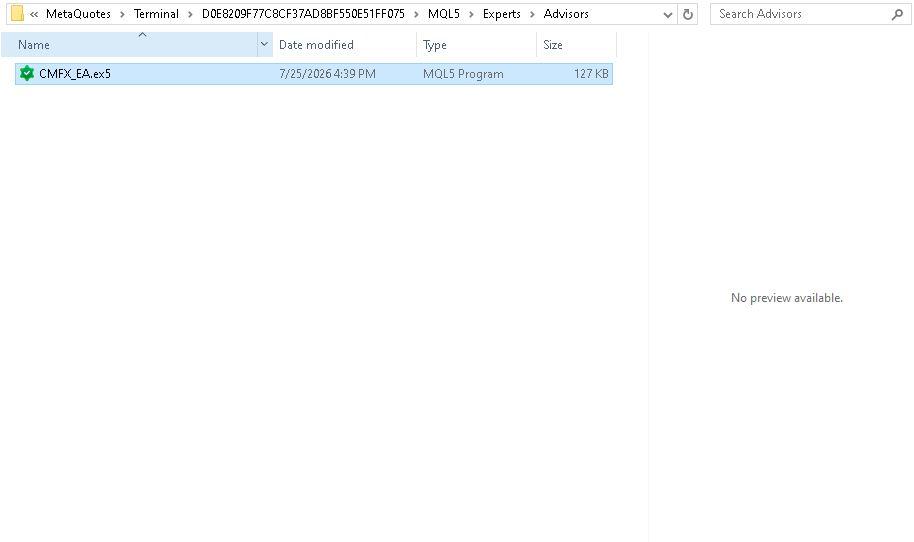
Download the CMFX_EA.ex5 file, then place it in the correct MT5 directory.
- 1Download CMFX_EA.ex5 from our website.
- 2In MT5, go to File → Open Data Folder.
- 3Navigate to MQL5 → Experts → Advisors.
- 4Place the downloaded
CMFX_EA.ex5file into this folder. Close the folder when done.
02
02
Enable MT5 Permissions
Configure MetaTrader 5 to allow Expert Advisors and web access for license verification.
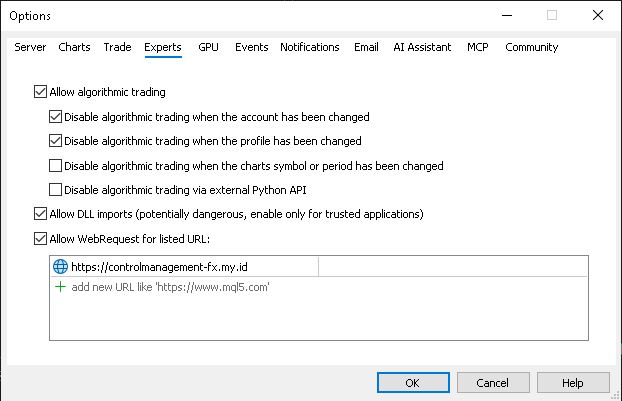
- 1Go to Tools → Options (or press Ctrl+O).
- 2Go to the Expert Advisors tab.
- 3Check these three boxes:
- Allow algorithmic trading
- Allow DLL imports
- Allow WebRequest for listed URL
- 4Click Add new URL, enter:
https://controlmanagement-fx.my.id/, press Enter, then click OK.
03
03
Attach EA to Chart
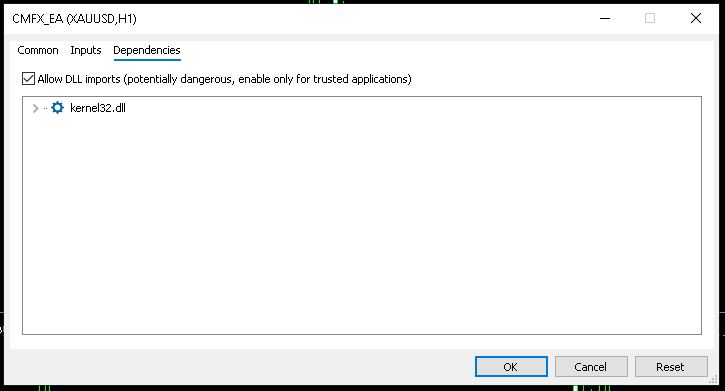
Now load CMFX-EA onto your chart and confirm the dependencies.
- 1In MT5, open the Navigator panel (or press Ctrl+N).
- 2Right-click on Expert Advisors → Refresh.
- 3Expand the Advisors folder, find
CMFX_EA. - 4Right-click CMFX_EA → Attach to Chart.
- 5On the Dependencies tab, check Allow DLL imports → click OK.
04
04
Activate Your License
The EA is now on your chart. To unlock permanently, activate with your license key.
- 1In the CMFX-EA panel, click the LICENSE ACTIVATION tab at the bottom.
- 2Enter your Account Number and License Key.
- 3Click ACTIVATE.
Don't have a license yet?
Register via our Exness referral, then activate through the Activation Page.

Ready to start trading?
Download the EA and activate your license to unlock unlimited H-Line triggers, multi-layer martingale, and full protection suite.